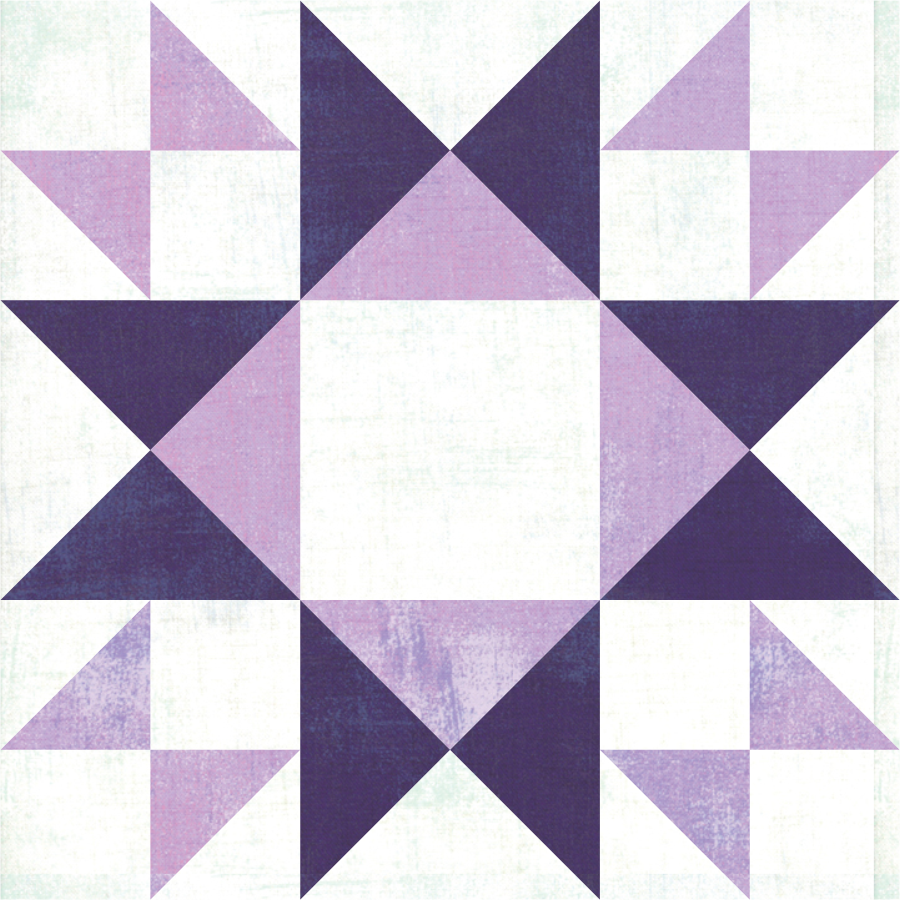

Sewing Shenanigans explanation
Zero. Zilch. Nada. There is no cost to participate. This is a free event I offer to my subscribers.
You need to subscribe to my mailing list to get the Zoom link.
Click on the Zoom link that is in the Sewing Shenanigans Newsletter at any time during the event. It will open Zoom and join you into the event automagically.
The easiest way to learn is to watch some YouTube videos. If you do a YouTube search, many videos will come up. The Zoom interface is very similar between devices, but you may need to include your device type in the search to find any specifics for your device:
- YouTube search for Windows computers (desktop, laptop)
- YouTube search for Apple computers (desktop, laptop)
- YouTube search for iOS devices (iPhone, iPad)
- YouTube search for Android devices (Pixel, Samsung, etc)
You may not be allowed into a Zoom event if your Zoom name is not set. There are two ways to change your name:
- In the meeting (temporary)
When you put your mouse cursor over your video in Zoom, a set of ellipsis (three dots) will come up.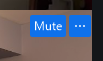
Clicking on this will bring up a menu, where the bottom option will let you rename.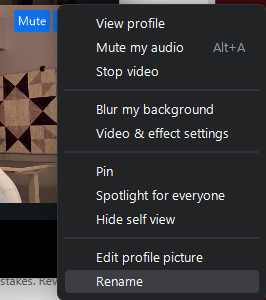
- In Zoom settings (permanent)
When joining a Zoom, if you are not logged in to a Zoom account, Zoom asks for your display name.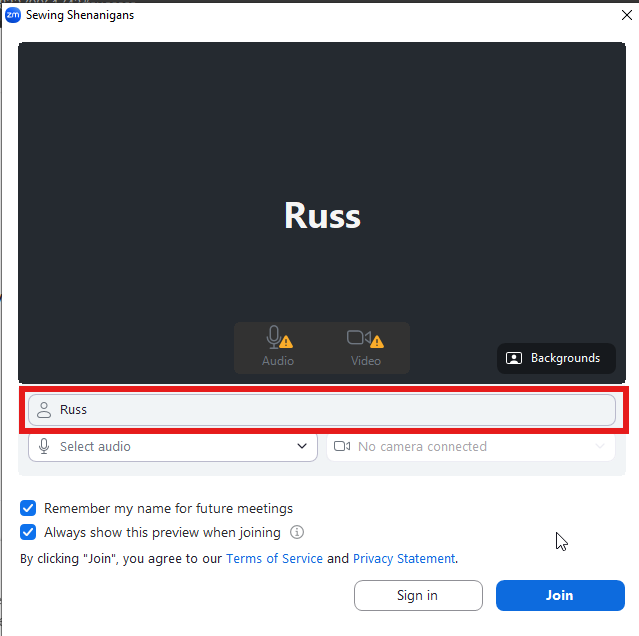
If you check the box that says “Remember my name for future meetings”, it will keep your name selection permanently.
While Zoom has some incredible noise canceling features, sometimes it doesn’t filter everything out. Your sewing machine may be making a lot of noise. You may have received a phone call and forgot to turn off your microphone. You may be humming and distracting folks. If you’re making distracting sounds, you might get muted.
<instructions>
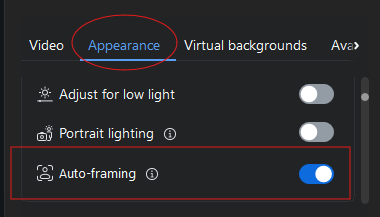
You have “Auto Framing” setting turned on with Zoom. This feature uses Zoom’s facial detection to search for your face and automagically try to center it in the frame. This can cause problems when you’re trying to show off a quilt, because Zoom will try to find your face and focus in on that.
To turn the setting off:
- Click the up arrow next to Video and choose Video and effect settings
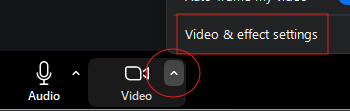
- In the settings, go under Appearance and find Auto-framing. A blue switch means it’s enabled and will try to follow your face. A grey switch means it’s disabled and will show the full camera’s view.